
How to Use Brimstone
Set up your workspace, index your draft files locally, build a unified Lore Bible, and maintain plot consistency offline.
1. Core Engine Setup
Before Brimstone can analyze your stories, it needs to configure your core processing engine. Because Brimstone runs entirely offline to keep your writing private, this engine runs directly on your computer's hardware.
Action Plan
- Open the Settings page from the sidebar.
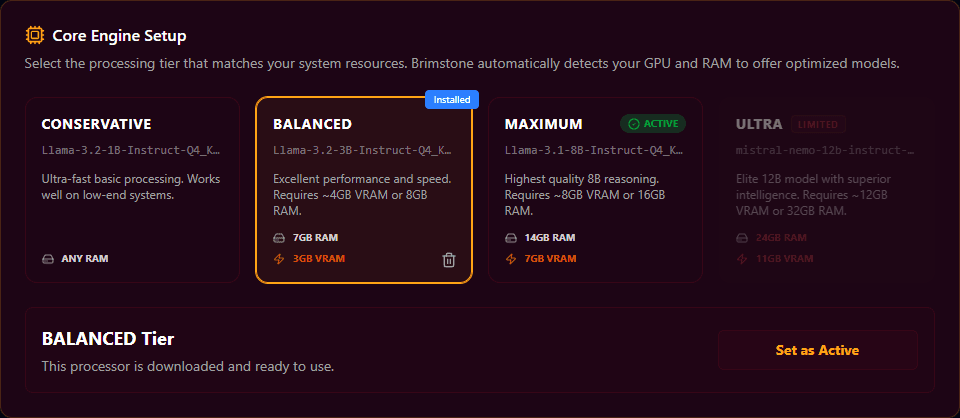
- Under Core Engine Setup, choose a processing tier that matches your computer's system resources:
- CONSERVATIVE: Ultra-fast basic processing. Works well on lightweight computers.
- BALANCED (Recommended): Excellent performance and speed.
- MAXIMUM: Highest quality story analysis and depth.
- ULTRA: Elite model with superior processing capability.
- Click to download and install your chosen tier. Once finished, click Set as Active.
2. Link Your Writing Folder
Brimstone organizes your projects by watching files on your hard drive, ensuring all data remains on your machine.
Action Plan
- Launch a new project from the main application.
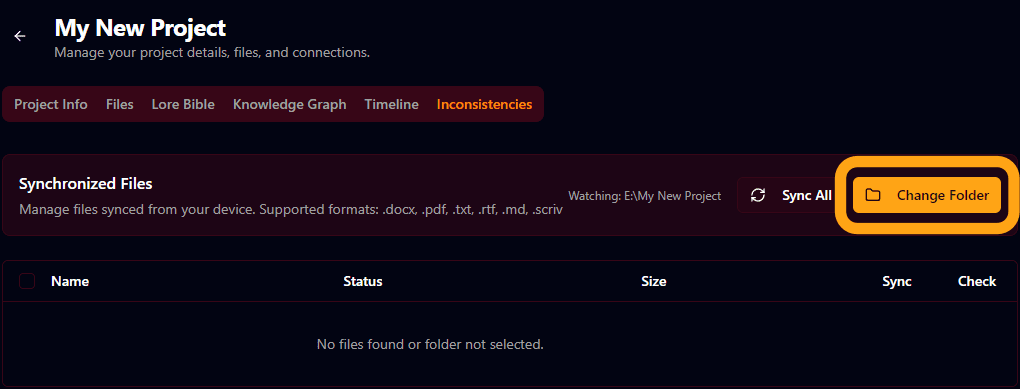
- Once in your project, click Link Workspace Folder or Select Folder.
- Choose the directory on your computer where you write and store your manuscript files (such as
.docx,.pdf,.txt,.md, or Scrivener files).
3. Sync Your Files & Read Your Lore
Now that your folder is linked, you can sync your documents to extract characters, locations, and magical systems.
Action Plan
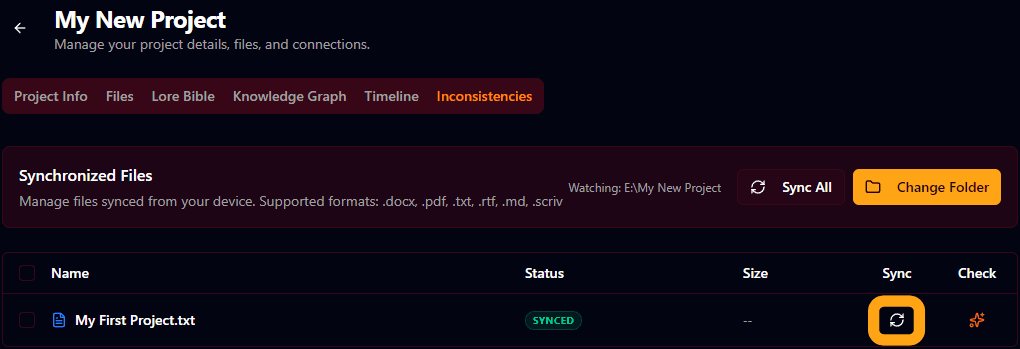
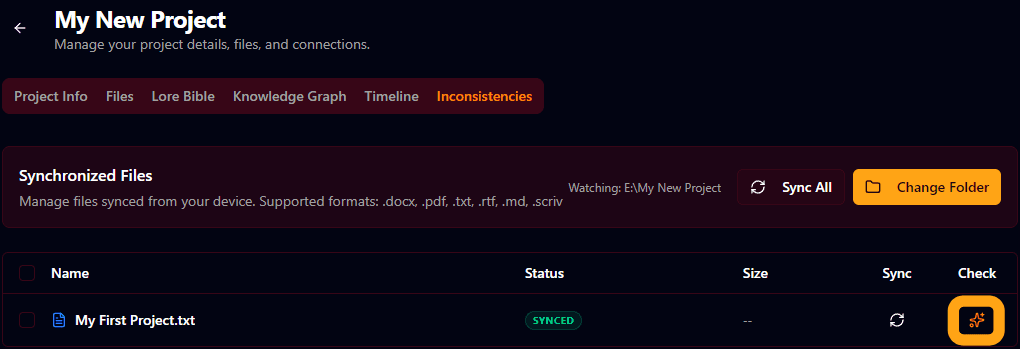
- Go to the Files tab. You will see a list of the documents in your folder.
- Click Sync on a specific file, or Sync All at the top.
- A progress bar will show the local engine reading through your text.
- Once synced, switch to the Lore Bible tab to see your generated encyclopedia containing your characters, items, races, spells, factions, and events!
4. Explore the Knowledge Graph
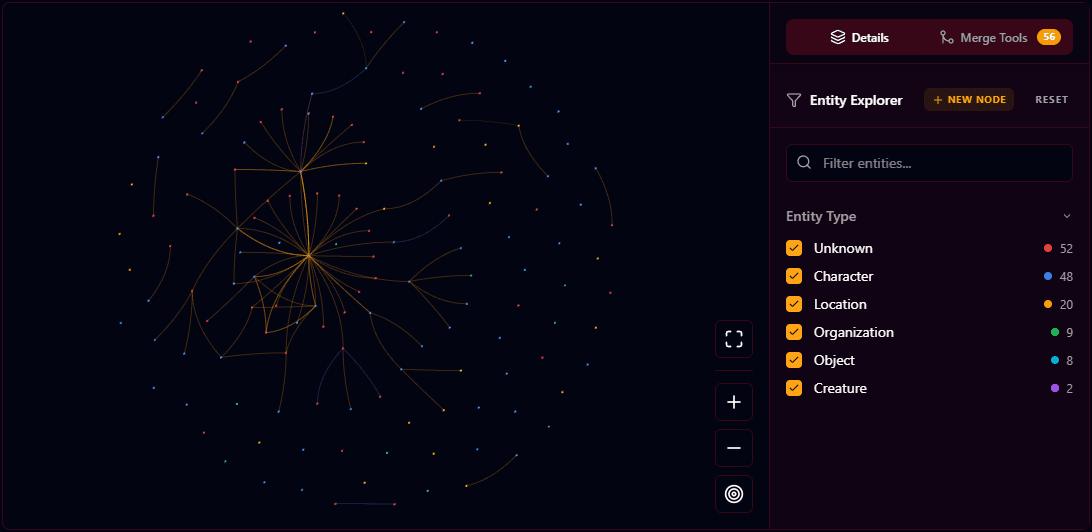
The Knowledge Graph is an interactive visual map of your story's universe. It connects your characters, places, and objects so you can see how they relate at a glance.
Action Plan
- Switch to the Knowledge Graph tab.
- Click and drag nodes to explore relationships. Zoom in and out to see the layout of your world.
- Smart Merge Suggestions: If the engine detects duplicate nodes that refer to the same entity (for example, a character extracted as both “Alistair Black” and “Alistair”), a suggestion will appear. You can merge them to join all their attributes, comments, and relationship lines into a single, clean node.
5. Resolve Story Inconsistencies (The Sandbox)
If you write something in a new chapter that contradicts your earlier chapters, Brimstone will catch it. For example, if a character has blue eyes in Chapter 1 but you write that they have green eyes in Chapter 5, the app flags a conflict.
Action Plan
- Open the Inconsistencies tab.
- You will see cards highlighting conflicting traits side-by-side.
- For each conflict, you can choose:
- Approve & Merge: Accept the new detail and automatically update your Lore Bible.
- Discard: Keep your original lore and throw away the new staged detail.
Frequently Asked Questions
Quick answers to common questions about setting up and running Brimstone.